SP3 OS On Dell

  • Subscribe to our RSS feed.
  • Twitter
  • StumbleUpon
  • Reddit
  • Facebook
  • Digg

Monday, February 22, 2010

Solved unknown devices in Windows Server 2008 Standard SP1 (x64) OS on Dell Precision T7500 workstation (Rev: 1.0)

Posted on 11:54 PM by Unknown


After installing Windows Server 2008 Standard Service Pack 1 (x64) Operating System (OS) on the Dell Precision T7500 workstation, there are various unknown devices in the Control Panel -> System -> Hardware -> Device Manager as shown below:

1. 3D video controller
-> Using Nvidia Quadro FX580 video card and Nvidia Tesla C1060 GPU card. We have added Nvidia Tesla C1060 GPU card (with 240 of Streaming Processor Cores and 4 GDDR3 memory) in the Dell Precision T7500 workstation. If you did not added the Nvidia Tesla C1060 GPU card, you will only see the Nvidia Quadro FX580 (512 MB) video card. Installing the device drivers using nVidia driver version 8.16.11.9100, A01.

2. Ethernet Controller
-> Using Broadcom NetXtreme 57xx Gigabit Controller. Installing the device drivers using Broadcom 57XX Gigabit Integrated Controller version 14.1.0, A05.

3. SM Bus Controller
-> Using Intel (R) ICH10 Family SMBus Controller - 3A30. Installing the device drivers using the "Chipset -> Intel driver version 9.1.0.1007, A23 (R205428) or higher version" from Dell.
4. System Interrupt Controller
-> Using Intel (R) 5520/5500/x58 I/O Hub GPIO and Scratch Pad Registers - 3422. Installing the device drivers using the "Chipset -> Intel driver version 9.1.0.1007, A23 (R205428) or higher version" from Dell.

5. System Interrupt Controller
-> Using Intel (R) 5520/5500/x58 I/O Hub GPIO and Scratch Pad Registers - 3422. Installing the device drivers using the "Chipset -> Intel driver version 9.1.0.1007, A23 (R205428) or higher version" from Dell.

6. System Interrupt Controller
-> Using Intel (R) 5520/5500/x58 I/O Hub Control Status and RAS Registers - 3423. Installing the device drivers using the "Chipset -> Intel driver version 9.1.0.1007, A23 (R205428) or higher version" from Dell.

7. System Interrupt Controller
-> Using Intel (R) 5520/5500/x58 I/O Hub Control Status and RAS Registers - 3423. Installing the device drivers using the "Chipset -> Intel driver version 9.1.0.1007, A23 (R205428) or higher version" from Dell.

8. System Interrupt Controller
-> Using Intel (R) 5520/5500/x58 I/O Hub System Management Registers - 342E. Installing the device drivers using the "Chipset -> Intel driver version 9.1.0.1007, A23 (R205428) or higher version" from Dell.

9. System Interrupt Controller
-> Using Intel (R) 5520/5500/x58 I/O Hub System Management Registers - 342E. Installing the device drivers using the "Chipset -> Intel driver version 9.1.0.1007, A23 (R205428) or higher version" from Dell.
Read More
Posted in | No comments

Thursday, January 28, 2010

Solved "Operating system not found" error during Windows XP OS bootup (Rev: 1.0)

Posted on 11:44 PM by Unknown


When booting up the Windows XP Professional Operating System (OS) in the Acer TravelMate 3002 notebook, an "Operating system not found" error appeared because the first primary partition in the hardisk that contains the Windows XP OS was not marked as "active".

You can use gdisk (in DOS environment) or gdisk32 (in Windows XP environment) from Symantec to check the status of your hardisk primary partition. For example, assume in Windows XP environment,

# gdisk32

Disk Partitions Cylinders Heads Sectors Mbytes Model
1 4 9726 255 63 76293.9 ST3808110AS
2 2 19457 255 63 152627.8 ST3160215AS
3 3 7296 255 63 57231.6 IC25N060 ATMR04-0 MO3O

Disk 3 is the 60 GB (shown as 57231.6 MB) hardisk that I have took out from the Acer Travelmate 3002 notebook that had the "Operating system not found" error during bootup. I connected the Acer hardisk (disk 3) to another computer using the USB interface and it is shown as disk 3.


# gdisk32 3

Disk Partitions Cylinders Heads Sectors Mbytes Model
3 3 7296 255 63 57231.6 IC25N060 ATMR04-0 MO3O

Partition Status Type Volume Label Mbytes System Usage
G: 1 PRIMARY 28678.5 NTFS/HPFS 50%
2 EXTENDED 28553.0 50%
H: 3 LOGICAL 28553.0 NTFS/HPFS 50%

In disk 3, the G drive is the first primary partition (Partition 1) where the Windows XP OS is installed. As shown above, the status is blank indicating that it is not marked as "active".


# gdisk32 3 /act /p:1
Partition Status Type Volume Label Mbytes System Usage
G: 1 A PRIMARY 28678.5 NTFS/HPFS 50%
2 EXTENDED 28553.0 50%
H: 3 LOGICAL 28553.0 NTFS/HPFS 50%

Mark the disk 3, partition 1 as "active" (Shown as "A" status).


Reference:

[1] Switches: GDisk and GDisk32 for Norton Ghost 2003
Read More
Posted in | No comments

Tuesday, December 29, 2009

Trim WinXP Pro OS in the 4 GB SSD (Rev: 1.0)

Posted on 9:13 PM by Unknown


Asus Eee PC 4G (white, 900 Mhz, 512 MB DDR2 SDRAM) comes with 4.0 GB Solid State Drive (SSD). After installing a full version of Windows XP Professional Operating System (OS), set a virtual memory of 512 MB, installed Asus Eee PC 4G software and drivers, anti-virus software, a strip down version of Microsoft Office 2003 Professional Edition with only Microsoft Word and Microsoft Excel, Microsoft Internet Explorer 7.0, Microsoft Windows Media Player 11.0, WinRaR v3.90, Samsung GT-S5603 handphone software, and also updating all the Windows XP Professional OS patches, the SSD has left with less than 300 MB of hardisk space.

Due to the low hardisk space, I decided to install the FoxIT Reader v3.1 (about 9.13 MB of installation size) to read .pdf (Portable Document Format) file and not the Adobe Reader v9.2 software (about 142 MB of installation size). I also performed the below to trim down the Windows XP Professional OS in order to save hardisk space:
  1. Remove unwanted software in the Start -> Control Panel -> Add or Remove Programs. At the Add or Remove Programs window, kindly click the "Add/Remove Windows Components". At the "Windows Components Wizard" window, select the "Accessories and Utilities" and click the "Details" button. Uncheck the "Games" subcomponent, select the "Accessories" subcomponent and click the "Details" button. I have only checked the "Calculator" subcomponent of Accessories, the rest are all uncheck (uninstalled).

    At the "Windows Components Wizard" window, only "Accessories and Utilities" with the "Calculator" subcomponent, "Internet Explorer", "Networking Services", "Update Root Certificates" and "Windows Media Player" are checked (installed). The rest are unchecked (uninstalled).


  2. Remove unwanted fonts in the Start -> Control Panel -> Regional and Language Options. Click the "Advanced" tab and at the "Code page conversion tables", I have only checked those English and Chinese fonts. The rest of the foreign fonts are unchecked (uninstalled). Kindly also check the "Default user account settings" and click the "Apply" button to apply all settings to the current user account and to the default user profile.


  3. Deleted unneeded or seldom used files by performing a search [for example, key in "*.hlp *.chm" at the search input box] at the whole C drive for the below extension files:
    • .hlp (Windows Help File)
    • .chm (Compiled HTML Help File)
    Kindly deleted these files from the displayed search result window.


  4. Deleted unneeded or seldom used folders at the below directories:
    At the "C:\Windows" folder,
    backup the below Service Pack or patches uninstall folders to another hardisk and deleted them:
    • $MSI31Uninstall_KB893803v2$
    • $NtServicePackUninstall$
    • $NtServicePackUninstallxxx$ (where xxx stands for numbers or letters or both)
    • $NtUninstallxxx$

    At the "C:\Windows\Help" folder,
    backup the whole Help folder to another hardisk and deleted those help files inside it. Please note that the "C:\WINDOWS\Help\Tours\mmTour\tour.exe" file cannot be deleted by Windows. If you delete it manually, Windows will automatically put a copy of it back to the "C:\WINDOWS\Help\Tours\mmTour" folder.


  5. Compress seldom used files or program folders
    Please perform a search at the whole C drive (where Windows XP Professional OS is installed) for seldom used files as shown below:
    • .txt (Plain Text File)
    • .rtf (Rich Text Format File)
    • .log (Log File)
    Compressed these files (assume your file system is NTFS) from the displayed search result window.

    For example, after the search result for "*.txt *.rtf *.log" files have finished, select all the .txt, .rtf and .log files, right-click and click "Properties". Click the "Advanced..." button. Kindly check the "Compress contents to save space" and click "OK".

    Try not to delete the .log files as it might be needed when uninstalling a software. If you wish, you can delete those End-User License Agreement Files such as eula.txt, eula.rtf or eula.xxxx.rtf where xxxx stands for numbers.


    Compress the below seldom used folders:
    • "C:\Program Files" folder
      (compress those programs folder that you think you have rare usage of it)
    • "C:\WINDOWS\SoftwareDistribution\Download" folder
    • Under "C:\Documents and Settings' folder, compress the below sub folders:
      • All Users
      • Default User
      • LocalService
      • NetworkService


  6. Recycle Bin
    Right-click the "Recycle Bin" and select "Properties". Under "Use one setting for all drives",drag the pointer to 0% to set the maximum size of "Recycle Bin" to 0 MB. Click "Apply" and click "OK".


  7. System Restore
    Disable the "System Restore" function at the Start -> Control Panel -> System. At the "System Properties" window, click the "System Restore" tab, and check the "Turn off System Restore on all drives". Click "Apply" and click "OK".


  8. Disk Cleanup
    Click Start -> All Programs -> Accessories -> System Tools -> Disk Cleanup. Select C drive as the drive that you want to cleanup and click "OK". Check the below to delete the files:
    • Downloaded Program Files
    • Temporary Internet Files
    • Offline Webpages
    • Recycle Bin
    • Temporary files
    • WebClient/Publisher Temporary Files
    • Catalog files for the Content Indexer

    For "Office Setup Files", it is not recommended to delete it unless you have ready access to your original installation media.

    For "Compress old files", it is not recommended to delete it because we don't know what are the compressed files and it might be needed by the Windows.

    Click "OK" to start deleting those files that you have checked.
Read More
Posted in | No comments

Monday, October 12, 2009

101 ways to be a better manager (Rev: 1.11)

Posted on 10:42 PM by Unknown


1. Getting immediate results
  • To achieve more sales to existing clients
    Build an information base on every client. Know your clients well so that you can find new ways to sell other products to them. Know what do your clients expect, need and want from you.

    Constantly reviewing and improving your servicing to your customer, for examples, provide useful and update information to customers, help customers through ideas or advice, improve your response to request (information on a product, deliveries, technical questions, etc) from customer, etc. Respond quickly to complaints by customers and follow these up so that you can improve your servicing to have a satisfied customer.

  • Gaining more clients
    Best advertising is word of mouth from your satisfied customer. Have plenty of written references and success stories from your satisfied customer.

    After knowing the types of customer who might uses your product, coordinate your sales team to descend on an industrial block or cold-calls on every business in that area. Another tactic is to have 1 salesperson, 1 day a week, cold-call on the telephone for the whole sales team. This job would be rotated within the sale team on a weekly basis.

  • Managing debtors
    Have a definite credit policy. For example, all payment must be made within 30 days once the goods and invoice are received. A commercial interest rates will be charged for overdue payment. Make your terms of trade very clear to awkward customers and potential customers. Have specific criteria for extending credit and ensure that it is adhered to by your staff.

  • Negotiate harder on purchases
    Your staff should know the key operational person in the supplier's firm so that direct contact can be made when problems occur.

    As there are always new products, new suppliers and technological changes, review the price on a regular basis. Always compare the prices offered by different suppliers and ask for better price, credit terms, service and technical support. Before negotiations with suppliers, know precisely what you want, the minimum terms you will accept, etc. Have a backup plan so that if these negotiations fail, you can still obtain an alternative supply.

  • Controlling inventory
    Effective sales forecasting leads to effective inventory control. To establish future stocking levels and stock profile, we can use historical analyses and modify it according to forward predictions of economic circumstances, competitor activity, additional sale plan from your own organisation, etc. Take account of the lead time from suppliers for the stock, and the necessary safety margin to ensure that sales are not lost through lack of stock. Review your inventory profile at least quarterly. When there is excess or non-moving items of stock, aim to quit the stock early.

  • Improving production margins

    • Negotiating better material costs.

    • Reducing direct labour costs, waste, downtime, rework, lost time through plant breakdowns, cost of components, etc.

    • Involving staff. Management should discuss problems and issues with supervisors and staff involved so that ideas for improvement are raised, considered and implemented.

    • Reassessing market and customer requirements, and reducing materials costs whenever possible. However, make sure your products still meet customer requirement in term of price and product performance.

      For example, a roller bearing manufacturer, after conducting such a survey, ceased manufacturing one range of bearings in stainless steel and began producing them in mild steel. This greatly reduced the cost, but also the quality of the product. However, the mild steel bearings were more than adequate for their application, and the customer was pleased with the reduction in price.


2. Managing Ourselves
  • We must manage our thought to stop negative, self-defeating thinking overpowering us. We control what we think. Our thoughts influence how we feel. Therefore, we have the opportunity to determine our own enjoyment and satisfaction.

  • We cannot continue to do things the same way simply because they have always been done that way. By altering our thinking habits, we can alter our behaviour and improve our performance.

  • Self-statements such as "I am a shy person, I am a failure, etc" influence our behaviour and lead us to bury ourselves deeper in old habits of thinking and acting. We must build better self-statements:
    • I am a shy person, but am becoming less so.
    • I am not the most outgoing person I know, but I am becoming better.
    • I will initiate contact with people and will not become upset when they do not initiate contact with me.
    • I am a sensitive person, but as a leader, I know I will have to do things I will not enjoy doing.

    Our existing self-statements are merely the ways we have come to think about ourself, and we can change that. Whenever we feel ourself slipping into self-defeat, we can imagine ourself on the ceiling looking down at ourself, and ask: "Are these negative thoughts helpful ? Do they help to deal with the problems ?"

  • Your performance as a manager is never as good as you think at your best moments, and never as bad as you think at your worst moments. A good writer usually put the work away for a while and come back to it with a fresh eye. Inevitably, it is not as good as he first thought.

3. Leadership and creating the climate


Reference:

[1] 101 ways to be a better manager by Graham Little
Read More
Posted in | No comments

Tuesday, September 15, 2009

Convert .ivr files to .wma or .mp3 format using RealPlayer and a USB thumbdrive (Rev: 1.2)

Posted on 3:40 AM by Unknown

The .ivr (Internet Video Recording) is a video file format used by the RealPlayer software from RealNetworks. The procedures to convert .ivr files to .wma (Windows Media Audio) or .mp3 (MPEG-1 Audio Layer 3) format using the free RealPlayer are different depending on your RealPlayer version. Assume that you are using Windows XP Professional SP3 Operating System (OS).


Procedures for RealPlayer v15 only (latest RealPlayer v15 as of 12 Oct 2012)


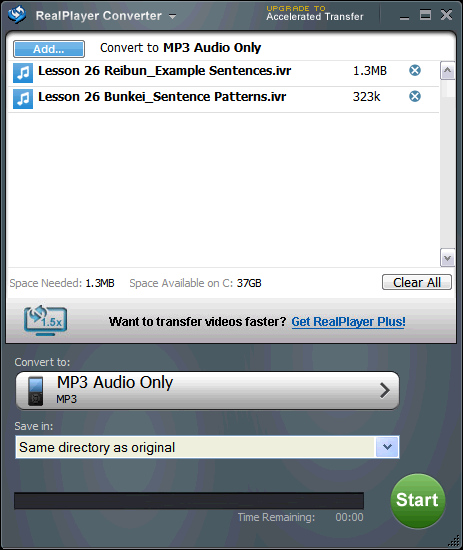
The procedures below show how to convert your .ivr files to .mp3 (MPEG-1 Audio Layer 3) format using the free RealPlayer Converter that comes with the RealPlayer v15.

  1. Please download and install RealPlayer version 15.0.6.14 (win32) or higher version from RealNetworks. In Windows XP OS, please click Start -> All Programs -> RealNetworks -> RealPlayer Converter.

  2. In RealPlayer Converter, kindly click "Add..." to add your .ivr files. In "Convert to:", please choose "MP3 Audio Only". The default MP3 quality is "128 kbps Stereo" and the default "Save in:" "Same directory as original" are fine with me. Click the "Start" button to start the .ivr to .mp3 conversion.


Procedures for RealPlayer v11 only (old)


The procedures below show how to convert your .ivr files to .wma (Windows Media Audio) or .mp3 (MPEG-1 Audio Layer 3) format using the free RealPlayer v11 and a USB thumbdrive or flash drive.

  1. Please download RealPlayer version 11.1 (win32) from RealNetworks or from here RealPlayer11GOLD.rar (12,893,466 bytes) MD5 checksum:
    395e96d4944fbd232408afb58490014a

    You can use WinRaR to unzip the RealPlayer11GOLD.rar.
    Kindly install RealPlayer v11.1 (basic version will do, no need to get Premium version) to your computer.

  2. Please plug in your USB thumbdrive or flash drive.

  3. In RealPlayer v11, click "My Library" -> "Playlists" -> "New Playlist". Give your Playlist a name. Then, click the "Add Clips" to add your .ivr files to this Playlist.

    Notes:


    a) If all the clip names are all the same after adding your .ivr files, it is advisable to change every clip names to a different name so that when RealPlayer converts your .ivr clips to .wma or .mp3 format, it will not stop at the first clip.


    b) If your .ivr files are stored in a folder name in Chinese characters, it is advisable to rename the Chinese characters folder name to English characters to avoid error in adding the .ivr clips into the Playlist.


  4. In RealPlayer v11, click "Burn/Transfer". If you have not install the VideoBurn plugin (11430 KB), RealPlayer v11 will automatically download and install it for you.

    In RealPlayer v11, at the "Current Burner/Device", click to select your USB thumbdrive. Then, at "My Library" on the Left Hand Side (LHS) of the RealPlayer, double-click "Playlist" -> "playlistThatYouHaveJustCreated".

    Click "Change Options..." locates at the bottom LHS of RealPlayer.
    Click the "Transfer" tab. You can choose to convert your .ivr clips to "MP3", "MP3 VBR" or "Windows Media Audio (.wma)" format. You can also choose the quality of the convert clips. As I want to convert the .ivr files to .mp3 format, I select "MP3" and set the quality as "192 Kbps Stereo".

  5. In RealPlayer v11, after setting your "Change Options...", click to select one of the clip names. Then, right-click and choose "select all" to select all the clips. Click the "Add Selected to Device" button to let RealPlayer convert your .ivr files to .wma or .mp3 format, and store the convert .ivr files to your selected USB thumbdrive.
Read More
Posted in | No comments

Sunday, August 16, 2009

PostScript (PS) and Printer Command Language (PCL) printer drivers (Rev: 1.1)

Posted on 7:48 PM by Unknown


In most laserjet printer, there are 2 types of printer drivers provided, namely PostScript (PS) and Printer Command Language (PCL). The PS printer driver is normally use to print Portable Document Format (pdf) document. For other document types (.doc, .txt, etc), please use the PCL printer driver.


HP 4500 colour laser printer

If you are printing a .pdf document to a HP 4500 colour laser printer using the HP Universal Print Driver for Windows PCL6 (v5.0) for Windows XP Operating System (OS), you will encounter the below printout error:

PCL XL error
subsystem: KERNEL
Error: UnsupportedProtocol
Operator: 0x0
Position: 0


The above error occurred because you are printing a .pdf document but you have use the PCL6 printer driver to print your document. Please change your printer driver to PS driver, eg: HP Universal Print Driver for Windows PostScript (v5.0) before printing.


If you are printing a .doc document to a HP 4500 colour laser printer using the HP Universal Print Driver for Windows PCL6 (v5.0) for Windows XP OS and you encountered the below printout error:

PCL XL error
subsystem: KERNEL
Error: UnsupportedProtocol
Operator: 0x0
Position: 0


The problem is caused by the HP Universal Print Driver for Windows PCL6 (v5.0) printer driver. You should delete the HP laserjet 4500 printer that uses the HP Universal Print Driver for Windows PCL6 (v5.0) printer driver. Then, install the HP LaserJet 4500 PCL6 Printer Driver and use it to print the .doc document to a HP 4500 colour laser printer.
Read More
Posted in | No comments

Tuesday, August 4, 2009

Add 32 bits Samsung ML-4550 printer drivers on Windows 2008 x64 Enterprise OS server (Rev: 1.0)

Posted on 3:29 AM by Unknown


Situation

We have a remote server running Windows 2008 x64 Enterprise Operating System (OS). A Samsung ML-4550DN printer is installed and shared at this remote server. When we tried to install “Additional Drivers...” of the Samsung printer for the 32 bits Windows 2000 or XP OS under the “x86 processor (Type 3 – User Mode)”, an error message of “Please provide path to Windows Media (x86 processor)” pop up and is asking for the ntprint.inf file from the i386 folder of the Windows media (x86 processor). As the server is installed with Windows 2008 x64 Enterprise OS, it does not has an i386 folder on the media.


Solutions:
  1. Please login to a 32 bits Windows XP/Vista/2008 computer (example: localx86PC) with administrator right.

    Please download the 32 bits Samsung ML-4551ND PS printer drivers for Win98/ME/2K/XP/2003/X64 OS version 1.61 or higher version into the localx86PC (assume Win XP OS). Extract the printer drivers to a folder, example: d:\SamsungPostScriptDriver.


  2. At the localx86PC, kindly click Start -> Run.
    Type \\remoteServerName (replace remoteServerName with your remote server name). Then, double-click on the remote share printer (example: Samsung ML-4550 Series PS) at the remote server to install the remote share printer to your localx86PC.


  3. A window prompt entitle "Connect to Printer" with the below content appears:
    "You are about to connect to a printer on remoteServerName, which will automatically install a printer driver on your machine. Printer drivers may contain viruses or scripts that can be harmful to your computer. It is important to be certain that the computer sharing this printer is trustworthy. Would you like to continue ?"
    -> Click "Yes" to continue.

    Another window prompt entitle "Connect to Printer" with the below content appears:
    "The server for the 'Samsung ML-4550 Series PS' printer does not have the correct printer driver installed. If you want to search for the proper driver, click OK. Otherwise, click Cancel and contact your network administrator or original equipment manufacturer for the correct printer driver."
    -> Click "OK" to search for the printer driver.


  4. After that, a window prompt entitle "File needed: Printer driver INF for Samsung ML-4550 Series PS" appears:
    "The file '*.INF' on (unknown) is needed."
    -> Kindly click the "Browse" button to copy the printer drivers files from the folder where you have extracted the downloaded printer drivers, example:
    d:\SamsungPostScriptDriver\Printer\PS\English\WinXP2K\.


  5. At the localx86PC, kindly click Start -> Printers and Faxes. Select the Samsung ML-4550 Series PS printer that we have just installed, right click on it and choose Properties. Click the Sharing tab. Then, kindly click the “Additional Drivers...” button.

    At the “Additional Drivers...” prompt, kindly click the Intel Environment (Windows 2000 or XP) selection box (default Installed is "No"). Click OK and the Samsung x86 printer drivers for Windows 2000 or XP will be uploaded to the remote server running Windows 2008 x64 Enterprise OS.


Reference
:


[1] Unable to add 32bit HP drivers to a Windows 2008 64bit print server with “Please provide path to Windows Media (x86 processor)” error
Read More
Posted in | No comments
Newer Posts Older Posts Home
Subscribe to: Posts (Atom)

Popular Posts

  • Solved Windows Defender "ERROR: Signature Update failed with hr=800106BA" & "Windows Update cannot currently check for updates because the service is not running" errors in Acer Aspire X5900 pc with Windows 7 Home Premium x64 OS (Rev: 1.0)
    After login to the Windows 7 Home Premium x64 Operating system (OS) of the Acer Aspire X5900 pc [Intel i5-650, 3.20 GHz, Western Digital 1 T...
  • Solved Windows 7 x64 OS hibernation failed problem due to VgaSave on Dell Precision T7600 workstation (Rev: 1.3)
    The Dell Precision T7600 workstation [2 x Intel Xeon E5-2687W (8 cores) 3.1 Ghz CPU, 256 GB RAM] has a Nvidia Quadro 5000 video card [ defa...
  • Solved changing SATA operation mode in BIOS from IDE to AHCI without reinstalling Windows XP x64 OS for ASUS P8H77-M motherboard (Rev: 1.0)
    Before the Windows XP x64 Operating System (OS) installation process on Asus P8H77-M motherboard computer that has Intel H77 Express Chipse...
  • Remote Desktop Connection (Rev: 1.89)
    Remote Desktop Connection (RDC) is a technology that allows you to sit at a computer/notebook and connect to a remote computer/server in a d...
  • Change Roxio Creator DE 10.3 from Chinese interface to English interface (Rev: 1.0)
    If your Roxio Creator DE 10.3 software installed in your Dell computer or workstation is of Chinese interface, and you want to change the Ro...
  • Japanese dictionaries (Rev: 1.33)
    Online dictionaries and eDictionary (edict) for Japanese language I have bought a few dictionaries ( The Kenkyusha Japanese-English learner...
  • Uninstall Remote Desktop Protocol 8.0 (KB2592687) update for Windows 7 Enterprise SP1 OS (Rev: 1.0)
    Microsoft KB2592687 is the Remote Desktop Protocol 8.0 update for the Windows 7 SP1 Operating System (OS) and Windows Server 2008 R2 SP1 O...
  • Solved People Express Management Flight Simulator software 16 bit Windows Subsystem error when login as a local user account in Windows XP Professional SP3 x86 OS (Rev: 1.1)
    After installed the People Express Management Flight Simulator (PEMFS) v1.02 on a Windows XP Professional SP3 x86 OS using an administrator ...
  • Solved unknown devices in Windows 7 (x64) OS on computer with Asus P8H77-M motherboard (Rev: 1.4)
    After installing Windows 7 (x64) Operating System (OS) on computer with Asus P8H77-M motherboard  [Intel Core i5-3470 (3.2 Ghz) CPU, Corsai...
  • Recover a Virtual Machine that disappears in Hyper-V Manager Console (Rev: 1.0)
    When trying to start a created Virtual Machine calls WinXPsp3_x86 in the Windows Server Enterprise 2008 SP2 Operating System with Trend Mic...

Blog Archive

  • ▼  2013 (8)
    • ▼  May (2)
      • Solved Windows Defender "ERROR: Signature Update f...
      • Automatically open multiple tabs in Firefox browse...
    • ►  April (3)
    • ►  March (2)
    • ►  February (1)
  • ►  2012 (26)
    • ►  December (5)
    • ►  October (1)
    • ►  September (3)
    • ►  August (2)
    • ►  July (6)
    • ►  June (2)
    • ►  March (4)
    • ►  February (1)
    • ►  January (2)
  • ►  2011 (13)
    • ►  November (1)
    • ►  October (5)
    • ►  September (1)
    • ►  June (2)
    • ►  May (2)
    • ►  March (1)
    • ►  January (1)
  • ►  2010 (14)
    • ►  December (1)
    • ►  November (2)
    • ►  October (1)
    • ►  June (3)
    • ►  May (3)
    • ►  April (1)
    • ►  March (1)
    • ►  February (1)
    • ►  January (1)
  • ►  2009 (16)
    • ►  December (1)
    • ►  October (1)
    • ►  September (1)
    • ►  August (3)
    • ►  July (1)
    • ►  June (1)
    • ►  May (2)
    • ►  February (5)
    • ►  January (1)
  • ►  2008 (44)
    • ►  December (4)
    • ►  November (7)
    • ►  September (2)
    • ►  August (7)
    • ►  July (3)
    • ►  June (3)
    • ►  May (2)
    • ►  April (1)
    • ►  March (9)
    • ►  February (6)
Powered by Blogger.

About Me

Unknown
View my complete profile